
Ready to increase your real estate sales by 4X? Meet Grant, your AI assistant designed to transform your real estate business. With deep insights into your listings, market trends, bio, and top-notch CRM integration, Grant keeps you ahead of the competition.
Keep reading for a walkthrough of your first steps with Grant.
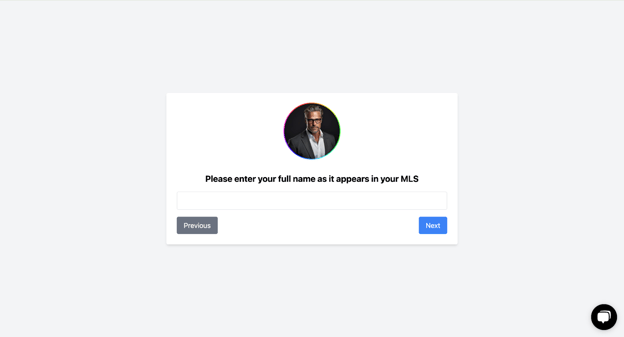
Step 1:
Type in your full name. Make sure you’re typing in your name as it appears in your MLS. Click on Next.
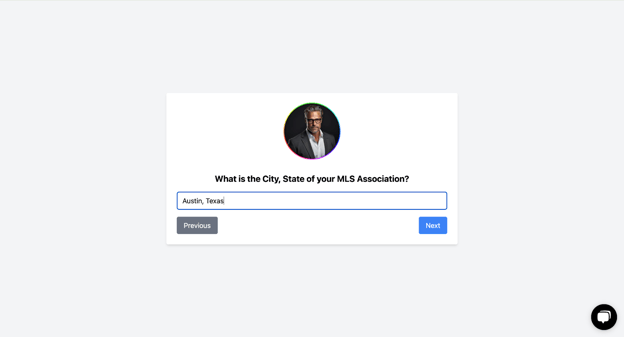
Step 2:
Enter in the city and state of your primary MLS association. Grant will auto-populate this field with your current location, but you can edit this field.
Step 3:
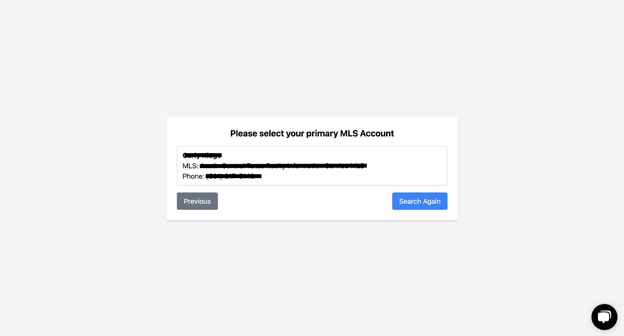
If Grant was able to locate your MLS account using your name, you will see it listed on this next screen. Click on it to confirm that it’s you.
If you see an error message or if the information populated is incorrect, click on the blue “Search Again” button. Grant will attempt to locate you based on your other contact information.
Grant not finding your MLS? Review this help article.
Step 4:
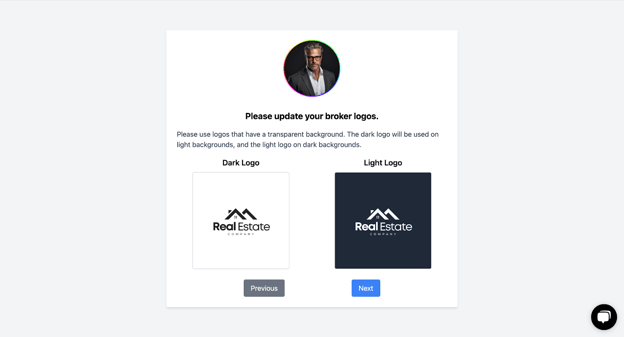
Hover over the default images below and upload your brokerage logo. For the website we’re creating for you to look its best, you will need a dark logo and a light one. Both should be on transparent backgrounds. Click on “Next.”
Don’t have those exact types of logos? Don’t worry. Upload what you have for now, and you can update it later. We recommend Canva for easy graphic design changes like removing your logo’s background.
Step 5:
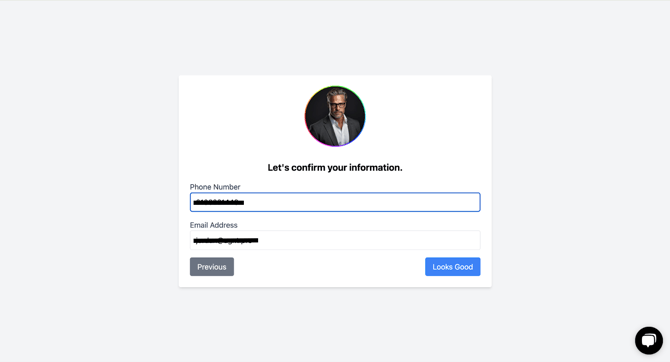
Confirm or edit the contact information Grant populates for you. This should be the phone number and email address you use for your real estate business. Click on “Looks Good” to move on.
Step 6:
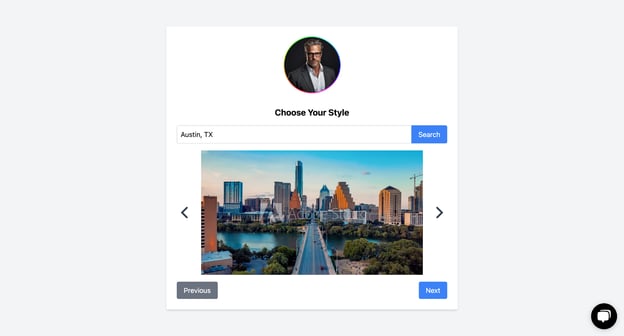
Now let’s start designing your website! Use the search bar and arrows to find a stock image that best matches your target market. You can always change this later.
Step 7:
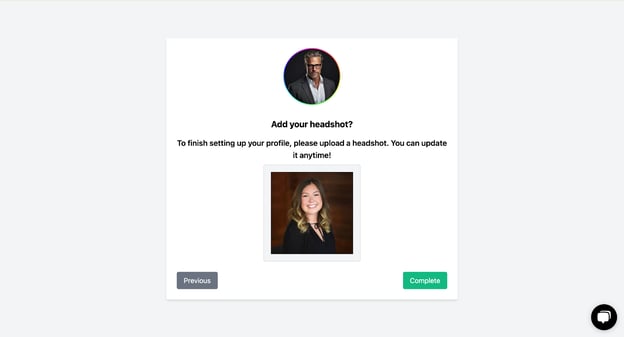
Last step! Upload your professional headshot. For best results, this image should be at least [image size]. Click on “Complete.”
When Grant has completed your initial account setup, you’ll land on a page that looks like this.
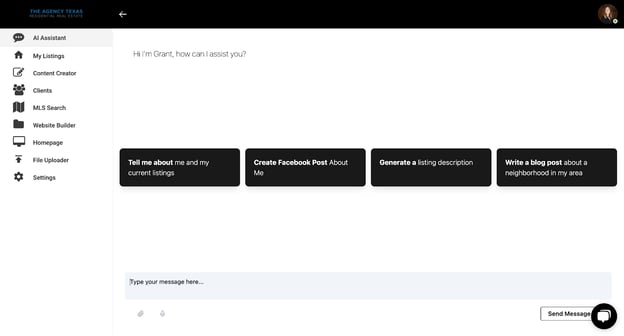
Use the left-hand navigation bar to…
- AI Assistant: Talk to Grant
- My Listings: Update your listings
- Content Creator: Write content like blog posts (Grant will do most of the heavy lifting!)
- Clients: Manage the leads that come in through your new website
- MLS Search: Create and share IDX saved searches
- Website Builder: Customize your website
- Homepage: View your live website
- File Uploader: Upload images, videos, and PDFs like your IABS
- Settings: Adjust your bio, headshot, contact information, and billing. This is also where you’ll add your Follow Up Boss API key if you use FUB.